JayP
Valuable Member


After receiving my new Aqua Rock Colorado backlight and spending a short time setting it up, I thought it might be useful to have a thread to share info with those that already have one, and those considering purchasing one.
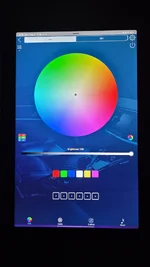
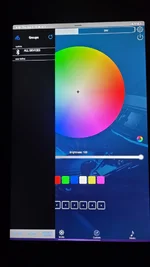
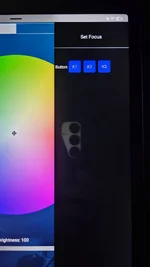
Let's get this out of the way first, and this is really why I'm posting this. The light screen did not come with any documentation.....none. There is no remote, just a bar code on the controller, that sends you to its app. The app won't even start up if it can't find a device, so you have to figure out what plug goes where and power it on. once the app finds and connects to the device, you'll see there is a forum and some videos. Both are basically worthless since this app is apparently used for controlling all this company's LED devices, so finding info specific to this device is a challenge.
Bottom line: This is probably the least intuitive app I've ever seen.
I should first mention, I have the RGB version which allows for color gradients without the use of special filters. I sat fiddling with buttons, sliders, modes, and settings for quite awhile trying to figure out the most basic thing I wanted the light for...displaying a blue/white color gradient (white on top and blue on bottom ). I finally went to ARC's website to send them a message asking for help, and I realized the video clip showing the light's capabilities, did in fact demonstrate what I was trying to do. So I sat for awhile watching the clip over and over, carefully focused on the person's button presses as they switched through solid and gradient background colors. After some time I was finally able to replicate the series of button presses to get what I wanted, but geeeeez!, this is a very raw development app and the buttons are not labeled in any way that would explain their function to the average person. After I finally got this figured out, it was time to turn it off and move to other tasks for the day, but wait.....now I can't even turn the light off . Hitting the power button at this point only turns off one LED strip, so now I have an all blue screen LOL! It seems you have to now backtrack a bit from the steps you took to get a gradient, in order to turn the entire screen off.
It's obviously going to take some time to get a good grasp of how to control the light. Fortunately, after tomorrow, I have a full week of time off to work on it in between other aquarium projects.
So, if you have either the RGB or non-RGB version of this light, please share any thing you've learned that can help others that might be considering it. I'll be putting together a set of instructions as I go along that will hopefully save a few from the headaches I've had today.
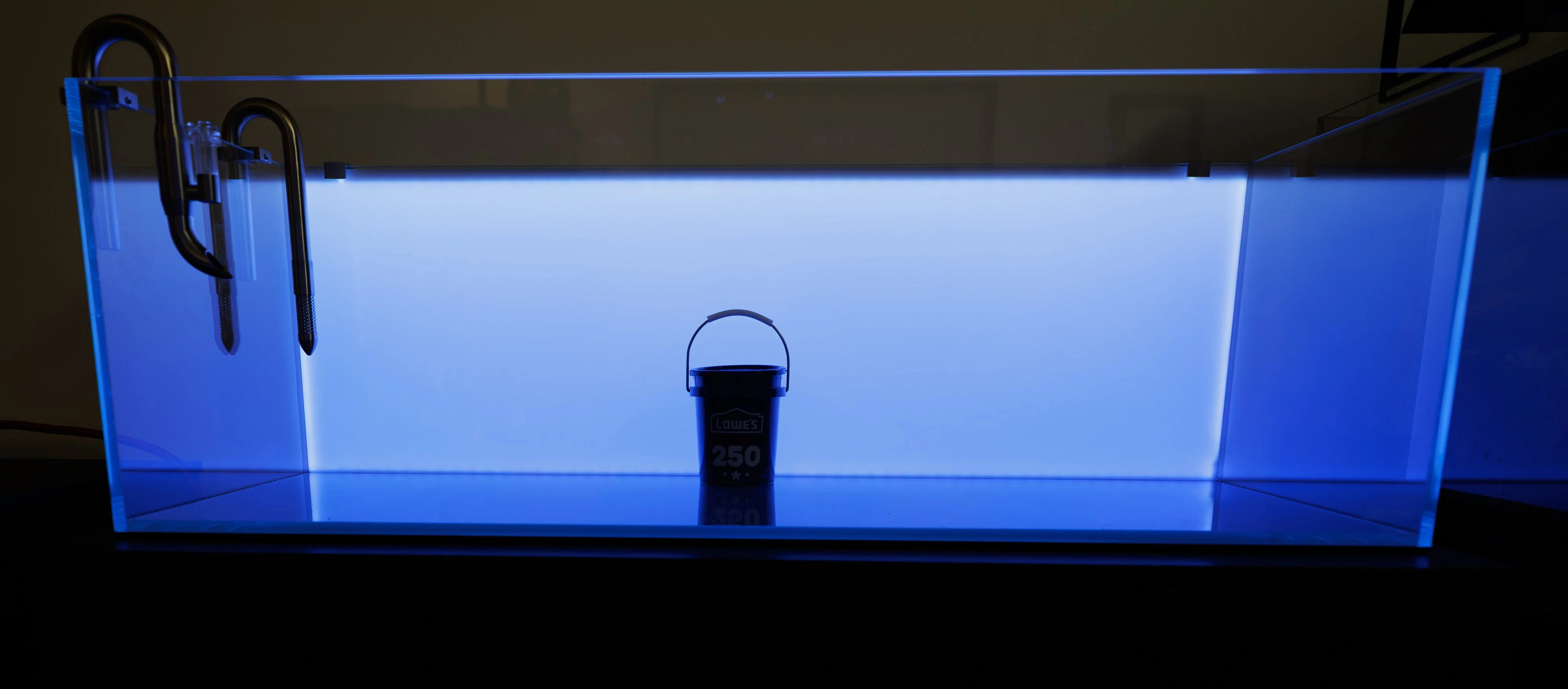
Mini Lowes bucket for focus.
Let's get this out of the way first, and this is really why I'm posting this. The light screen did not come with any documentation.....none. There is no remote, just a bar code on the controller, that sends you to its app. The app won't even start up if it can't find a device, so you have to figure out what plug goes where and power it on. once the app finds and connects to the device, you'll see there is a forum and some videos. Both are basically worthless since this app is apparently used for controlling all this company's LED devices, so finding info specific to this device is a challenge.
Bottom line: This is probably the least intuitive app I've ever seen.
I should first mention, I have the RGB version which allows for color gradients without the use of special filters. I sat fiddling with buttons, sliders, modes, and settings for quite awhile trying to figure out the most basic thing I wanted the light for...displaying a blue/white color gradient (white on top and blue on bottom ). I finally went to ARC's website to send them a message asking for help, and I realized the video clip showing the light's capabilities, did in fact demonstrate what I was trying to do. So I sat for awhile watching the clip over and over, carefully focused on the person's button presses as they switched through solid and gradient background colors. After some time I was finally able to replicate the series of button presses to get what I wanted, but geeeeez!, this is a very raw development app and the buttons are not labeled in any way that would explain their function to the average person. After I finally got this figured out, it was time to turn it off and move to other tasks for the day, but wait.....now I can't even turn the light off
. Hitting the power button at this point only turns off one LED strip, so now I have an all blue screen LOL! It seems you have to now backtrack a bit from the steps you took to get a gradient, in order to turn the entire screen off.It's obviously going to take some time to get a good grasp of how to control the light. Fortunately, after tomorrow, I have a full week of time off to work on it in between other aquarium projects.
So, if you have either the RGB or non-RGB version of this light, please share any thing you've learned that can help others that might be considering it. I'll be putting together a set of instructions as I go along that will hopefully save a few from the headaches I've had today.
Mini Lowes bucket for focus.